Welcome to Yaadein
Your Life. Your Moments. Forever.
Yaadein (यादें, "memories") is where your life becomes a story. You keep the photos, videos, voices and words that help you remember. Yaadein keeps them together, with the people, places and dates around each one, so your family can relive them for generations.
This guide takes about ten minutes. You can also read it in the app at yaadein.ogmworld.com/tutorial.
The home page is your starting point. Use the navigation to explore your Moments, timeline and people, or choose Capture to add a memory.
1. Create your account
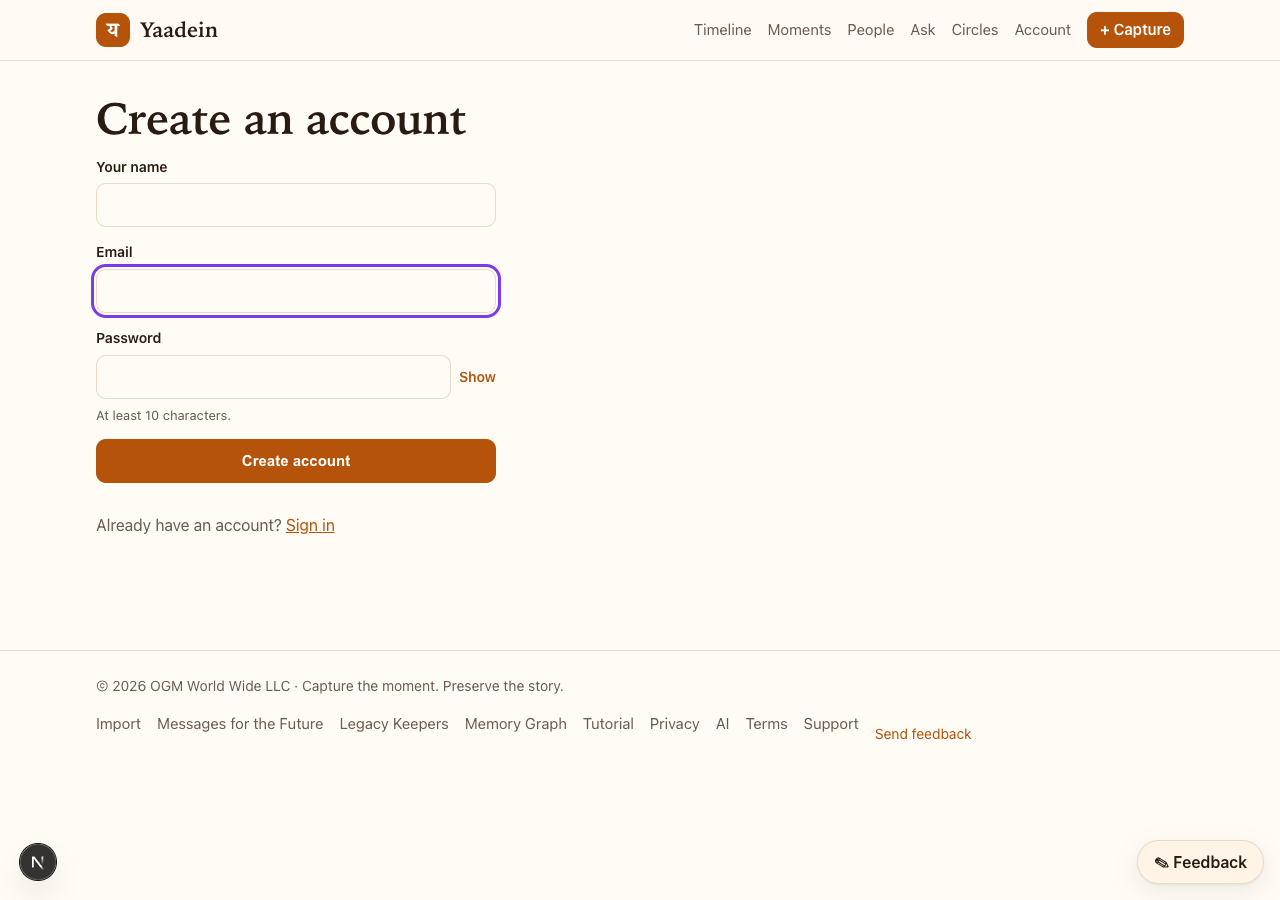
- Open yaadein.ogmworld.com (or the Yaadein app) and choose Start your story, free.
- Enter your name, email and a password of at least 10 characters, then choose Create account.
- Check your email and tap the link to confirm it.
- Optional but recommended: in Account → Security, turn on two-step sign-in or add a passkey (Face ID or fingerprint).
Everything you add is private to you until you choose to share it.
2. Tell Yaadein about you
- Go to Account and enter your birthday. Your Life Timeline starts on that day, and every Moment shows how old you were.
- Choose how often you'd like a "Remember this?" email: every day, every week, every month or never.
3. Add your people
Go to People and add the people in your story: Mother, Father, Grandparents, children, friends.
- Give each one a relation ("Grandmother", "Friend"). Then you can ask things like "Show me every Diwali with Dad".
- Open a person to add their birthday, a few words about them, and family links ("Asha is a parent of Riya"). These build Connections in my life (More → Connections in my life).
You can also add people on the spot while capturing a Moment.
4. Capture your first Moment
A Moment is one event: a birthday, a wedding, a trip, an ordinary happy Sunday. Choose + Capture:
- Name it: "Sarah's 10th birthday".
- When: an exact day, or just the month, year or decade if you're not sure.
- Where and Who was there.
- Pick what kind of moment it was and how it felt (Joy, Love, Tradition…).
- Add photos, videos, screenshots, scans or letters. iPhone photos (HEIC) and long videos are fine.
- Tell me about this: press Start talking and just say what you remember. Your real voice is kept with the Moment. Turn on Write down what I say to see the words appear (your browser's speech service does this) and fix anything it heard wrong.
- Choose what happens to it after your lifetime (see step 11).
- Save this Moment.
Tip: you don't need everything at once. Save now; add more later.
For example, create Sarah's 10th birthday, set the date to her birthday, add Sarah under people, and upload a birthday photo. Save the Moment, then open it later to add a story or share it with family.
5. Bring in the photos you already have
Choose Import (on Home, or in the footer):
| From | How |
|---|---|
| This device | Pick photos and videos from your phone or computer. |
| A whole folder | Choose an old photo folder or memory card. Tick Each sub-folder is an album to turn each folder into one Moment, or leave it off to group by date. |
| Google Photos | Connect Google Photos and pick the photos you want. Yaadein only sees what you pick. |
| Google Takeout | Download your whole Google Photos library from takeout.google.com as ZIP files and add them one at a time. Dates, descriptions and places come with them. |
| Drive, Dropbox, OneDrive | Paste a share link ("Anyone with the link can view") to a file or a Drive folder. |
| iCloud / Apple Photos | On iPhone, use This device and pick from your library. For everything at once, on a Mac choose Photos → File → Export → Export Unmodified Originals, then import that folder. |
Yaadein groups photos into Moments by when they were taken, keeps the originals, and skips anything it already has, so importing twice is safe. Then open each new Moment to give it a name, add people and say what you remember.
Import from a storage link
- In Google Drive, Dropbox or OneDrive, create a share link for the file you want to import. Google Drive folder links are also supported.
- Set access to Anyone with the link can view, then copy the link.
- In Yaadein, open Import and choose Drive, Dropbox, OneDrive.
- Paste the link into Share links, one per line. To import several links, put each on its own line.
- Choose Import from links and check the import status. Open the resulting Moment or Moments to review them.
- Once the import is complete, you can turn off link sharing in your storage service.
For example, share a Google Drive folder containing photos from a birthday party, paste its folder link into Yaadein, and choose Import from links. After the import finishes, open the new Moments and add the names and stories you remember.
6. Open a Moment
Each Moment shows its photos and videos, everyone's memories of it, and who it's shared with.
- Tap a photo to see it large, add a caption, make it the cover, or record "Tell me about this photo".
- Memories of this Moment: everyone who was there can add their own story, in writing or by voice. One Moment, many memories.
- Edit details: fix the date, place, people, feelings or life stage.
- ✦ AI help: Yaadein can suggest a title, event type and feelings, or write the story of the Moment from what everyone said. *AI only suggests; nothing changes until you choose Use these or Save as a story.* Only the words are used, never your photos or voices.
- Join Moments (on the Moments page): if an import split one event into two, pick both and join them.
- Wrong ✕: if an AI suggestion is wrong, press Wrong ✕ beside it. Yaadein remembers and won't suggest it again. You can undo this in Account → Corrections.
- Restore a faded photo: in the photo viewer, choose Make a restored copy. Your original is never changed. Switch between Original and Restored, or remove the copy at any time.
- Heard in this recording: voice and video stories show their words. Words you type are marked as yours. Words Yaadein heard by itself are marked so you can check them.
- Undo: when you delete a photo, story or reflection, you get 7 seconds to press Undo.
- ▶ Make a short film: Yaadein turns the Moment's photos into a short video, with the family's own voice story playing over them. Private photos are left out. Watch it, download it, and share the file if you like.
- Pause while you talk: when recording a story, press Pause to think or fetch an album, then Carry on. It stays one recording.
Find and organize photos
Open Photos to browse pictures across every Moment. Search captions, filenames, categories, labels, Moment names and places. Filter by category, year or favourites, and sort by newest, oldest or filename.
Select several photos to move them into an existing Moment or create a new Moment for them. You can add a caption, category and comma-separated labels to each photo. If AI features are on, Suggest description and labels analyzes one photo privately and shows a draft. Review it before choosing Apply suggestions.
Who is this? (face grouping, off unless you turn it on). In Account, you can choose to let Yaadein find the same person across your photos. Faces are found on Yaadein's own server, never sent to an outside AI service, and stay private to you. Yaadein only suggests ("Is this Nani?"); nothing is named until you choose Confirm, and you can choose Skip for any face. Turning it off deletes every face Yaadein found.
Memory Inbox and duplicates
After an import, new Moments wait in More → Memory Inbox. For each one, Yaadein suggests a life chapter (from the date), a place (from where the photos were taken) and people (from faces you confirmed). Tick what fits and press File it. Nothing changes until you do.
The Inbox also shows photos that look the same, such as a picture sent through WhatsApp and the original. Yaadein suggests which one to keep, but it never deletes either one. Delete the one you don't want, or press They're different.
A printed book
Open More → Make a book, pick the Moments and give the book a title. Yaadein makes a PDF you can print, with one page per Moment. Each page has a QR code and a short link that open that Moment's photos for anyone holding the book: point a phone's camera at the code, or type the link. Private photos are never shown there. You can turn off one link, or every link in a book, at any time.
7. Relive
Press ▶ Relive on any Moment for a full-screen slideshow with the voices playing. Use the space bar to pause and the arrow keys to move. Full screen works well on a TV.
8. Your Life Timeline
Timeline shows every Moment year by year, from the year you were born, with your age and life stage (Childhood, School, College, Marriage, Parenthood…). Empty years invite you to add something. Not sure when lists Moments without a date: even a rough year puts them on the timeline.
9. Ask Yaadein
Ask in your own words:
- "Show me every birthday"
- "Moments with Mom in 2010"
- "What did Dad say about his childhood?"
- "Which years don't have many stories?"
- "Who haven't I named in my photos?"
Yaadein answers only from your Moments, and every answer links to the Moments it came from. Each answer says what kind of answer it is: a Fact from your records, a Contributed memory someone wrote, an AI summary or AI suggestion, or Unknown. It also says how sure Yaadein is: Likely, Possible or Not enough information.
10. Share with family
Family Circles are private groups, such as "Saraf family" or "College friends".
- Go to Circles → Start a Circle, then Invite family by email.
- Choose what each person can do: view and add stories, also add photos and videos, or also invite and manage.
- Open a Moment, choose Share and invite, and tick the Circle.
Guests at an event (a wedding, a birthday party) don't need an account:
- In the Moment, choose Share and invite → Create guest link and QR code.
- Print the QR card or share the link. Guests scan it, upload photos, record a voice wish or write a few words.
- Nothing appears until you approve it. You'll see Waiting for your approval at the top of the Moment.
- Turn the link off any time; it also stops working by itself after 30 days.
11. Messages for the Future and Legacy Keepers
Messages for the Future: write a letter, record a video or voice message, and attach Moments, to open on a date that matters, such as a wedding day or an 18th birthday. Yaadein keeps it sealed and emails the person on that day. You can also choose:
- At a milestone, such as "when she graduates". Name a trusted person. Yaadein emails them a link, and when they confirm the milestone has happened, the message is delivered. The trusted person never sees the message.
- After I'm gone. The message is delivered once your Legacy Keepers have been given access.
Legacy Keepers: name the people you trust to look after your memories one day. For each Moment you choose (in Edit details) whether it:
- goes to your Legacy Keepers,
- becomes part of your family history, or
- stays private forever.
If a Keeper asks for access, Yaadein tells you straight away, waits 30 days so you can decline, and a person on our team checks before anything is opened.
In Legacy settings you can ask for more than one Keeper to agree before access is given, choose whether each Keeper may download, and change or replace a Keeper. Once access is given, your Moments show In memory of and Yaadein stops sending reminders.
12. Remember this?
Your Home page brings back a Moment from years ago, On this day in earlier years, and Moments that have photos but no story yet. Press Tell the story and talk for a minute; that's how a photo becomes a memory.
13. Your memories are yours
- Private by default. Nothing is shared until you share it.
- Download everything in Account → Privacy → Download my memories (ZIP): original photos and videos, voice recordings, stories, and an index page you can open in any browser, without Yaadein. It also includes your people, chapters, places and who each Moment is shared with. Tick Include face groups if you want those too.
- Never used to train AI. You can turn AI off in Account.
- Delete a single photo, a Moment, or your whole account at any time.
Speak instead of typing
Beside most boxes where you'd write (stories, memories, notes, messages for the future), press 🎤 Speak instead, talk, then press Done speaking. Yaadein writes down what you said into the box, on its own server. Read it, fix any word, then save. The recording itself isn't kept.
Language and larger text
In Account, choose English or हिन्दी (Hindi), and tick Larger text and buttons if you'd like everything bigger. Your choice is remembered on this device. Hindi covers the main pages so far; the rest are still in English.
14. Tell us what's not working
Press Feedback (bottom-right on every page). Yaadein takes a screenshot of what you see; you can point at the problem, draw on it, blur anything private, and add a comment. You can also record your screen for up to a minute. We read every report, and email you when it's fixed.
Questions? Use Support in the footer, or write to admin@ogmworldwide.com.